
Marketplace Hound lets you save a Facebook Marketplace search and receive emails about matches found during scheduled checks. You can also review those matches in Saved alerts. This guide covers Hound’s email settings; it does not change Facebook’s own notifications.
1. Start with a product and a place
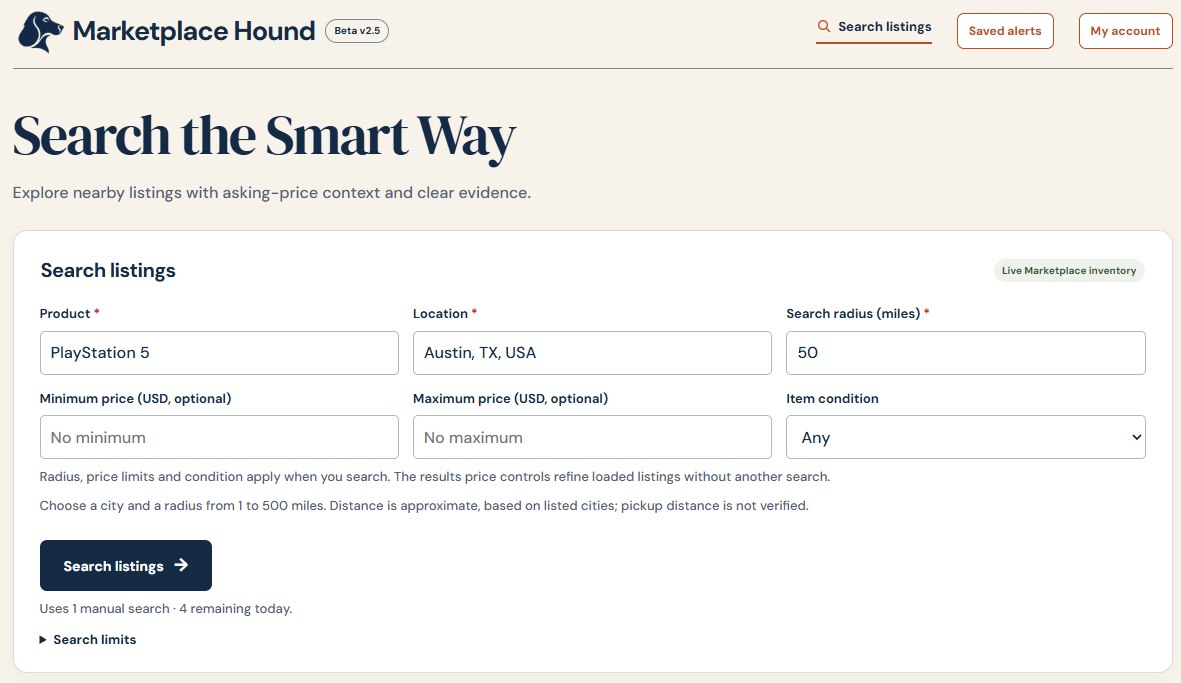
Open Search listings and sign in. Enter a product, choose a suggested city, and set a search radius. A specific model such as “PlayStation 5” is a useful starting point. Use the separate price and condition controls to narrow your criteria.
Run the search and review what comes back. Location is based on listed cities and an approximate area; confirm the actual pickup location with the seller. Changing price controls on already loaded results does not use another manual search.
2. Save the criteria you want to keep watching
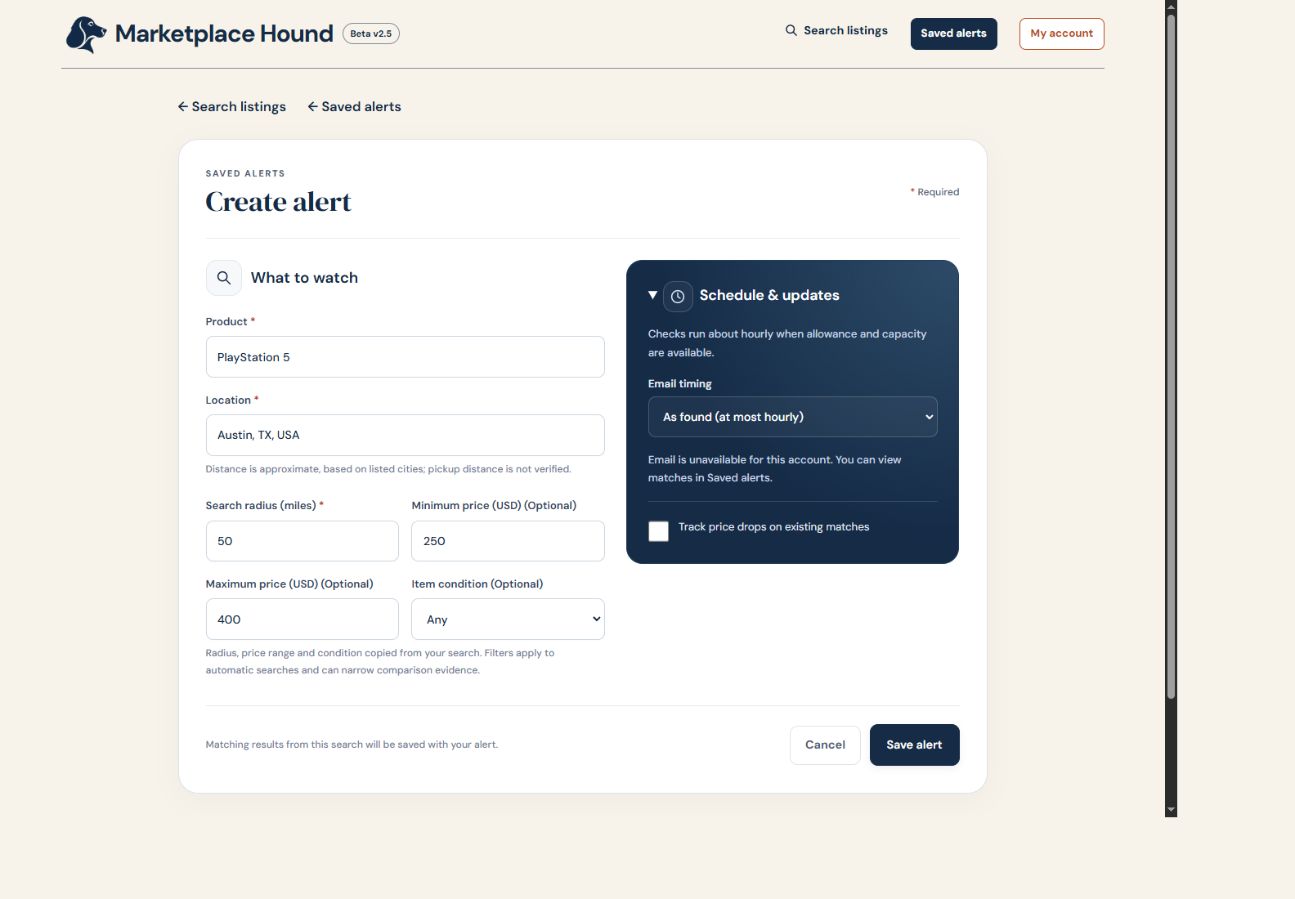
Choose Create alert from your results, or create one from Saved alerts. Review the product, location, radius, price limits, and condition before saving. Saving an alert does not use a manual search, but an active alert needs an available alert slot.
3. Choose when emails arrive
The check schedule and email timing do different jobs. Checks look for listings, usually about hourly when allowance and capacity are available. Email timing controls how discovered updates are grouped for delivery.
- As found (at most hourly)
- Receive updates as matches are processed, subject to the email frequency limit. This is not an instant notification when a seller posts.
- Hourly
- Group updates into an hourly digest.
- Daily
- Receive a daily digest. Choosing daily email does not change checks to once a day.
Make sure alert emails are turned on in Saved alerts. If email is unavailable for your account, you can still review saved matches there. No new matches means no match email; checks and delivery can be delayed.
4. Decide whether to track price drops
Enable Track price drops on existing matches if you want Hound to follow asking-price changes on saved matches. A change has to be observed during a later check and meet your alert criteria. It is not a continuous record of every price a seller has used.
Review the listing again after a drop. Confirm the model, included accessories, condition, and availability. A lower asking price alone does not establish a good deal.
No email yet? Check these first
- Look in Saved alerts. Check the alert’s status, last check, next check, and results. A waiting check may have no new information to email.
- Check access and allowances. A paused or expired alert, exhausted automatic allowance, or unavailable capacity can prevent another check. My account shows your current usage and access.
- Review email settings. Make sure emails are on and check whether you selected daily delivery.
- Check your inbox folders. Look in spam or junk. An email recorded as sent is not confirmation that it reached your inbox.
If the status is unclear, contact support with the alert name and what you see. Never send your sign-in code or password.
Keep your watchlist useful
Edit the criteria when your budget changes. Pause or delete an alert when you no longer need it, and check its expiration date if you want to renew it. Review the allowance details in My account; trial accounts have reduced limits.
When a match looks promising, open the original Facebook listing and contact the seller there. Hound does not reserve items, verify sellers, or handle the purchase.
Put your next search on watch.
Start with a product and your area, then save an alert from the results.
Start a searchMarketplace Hound is independent of Facebook and Meta.